How to create or claim a Google Business Profile: a guide for clients
A Google Business Profile can help eligible local businesses appear in Google Search and Maps. It gives customers a convenient place to find contact details, opening hours, directions and reviews. Adding or claiming the profile is free; the business must still meet Google's eligibility rules and complete the verification offered for its situation.
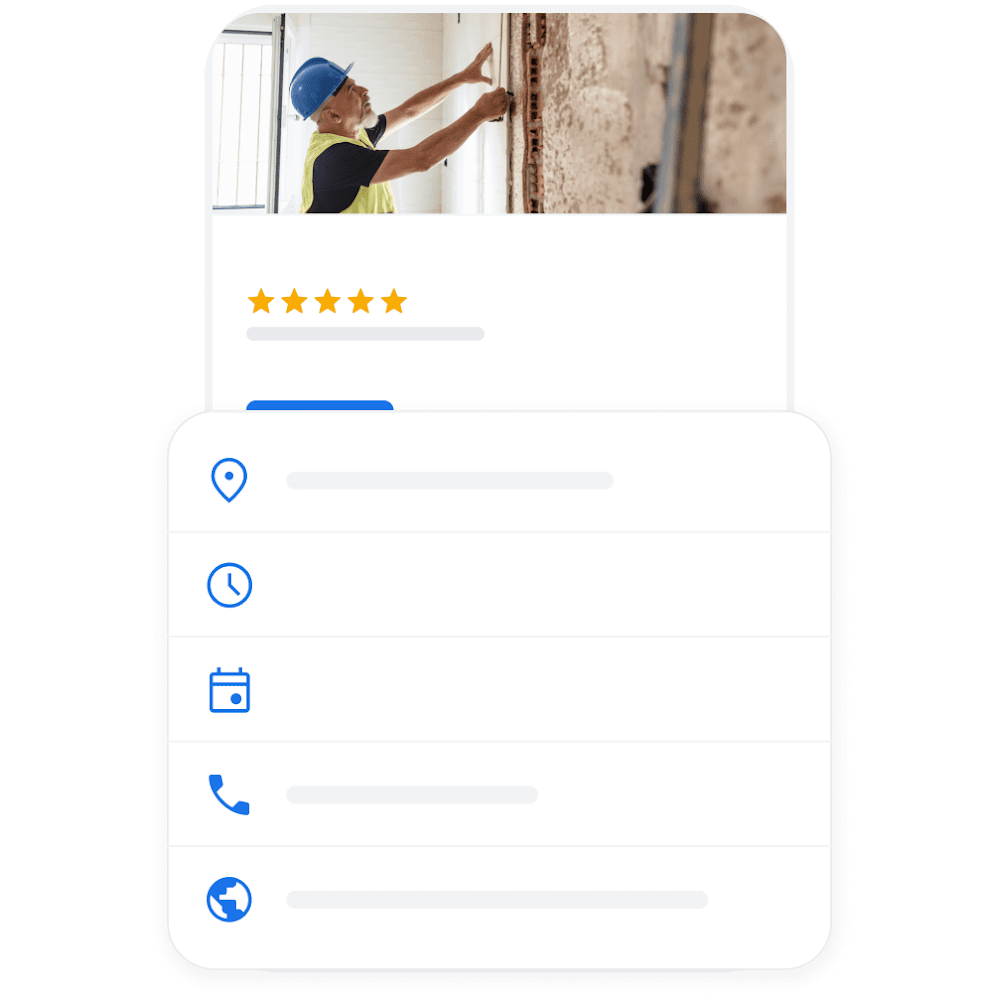
Illustration from Google's Business Profile website. Interface labels and available features may differ by account and language.
What to prepare
- A Google Account the business can continue to control, preferably associated with a business email.
- The real business name, without additional promotional keywords.
- The phone number, website, hours and location or service area.
- Evidence that you are authorised to manage the business if requested during verification; Czech businesses may also need their IČO for relevant documentation.
- A logo and genuine photographs of the premises, team, products or work.
Step 1: open the setup process
Go to Google's add-business page and follow the current instructions. Search for an existing profile before creating a new one. If the business is already listed, use the claim or ownership-request process rather than creating a duplicate.
Step 2: enter the name and category
Use the name the business actually uses publicly. Do not add a city, service or phrase such as “best plumber” solely to target searches. Choose the primary category that best describes the main business and add other relevant information through the available fields.
Step 3: set the location or service area
If customers visit a qualifying business location, enter its accurate address. If the business travels to customers and does not receive them at its address, use the appropriate service-area setup and hide the address as required by Google's rules. Do not list a fictional office or a location that does not qualify.
Step 4: add contact information
Enter the telephone, website and opening hours. Check that the same practical details appear on the website and other official listings. Include special hours when relevant so customers do not arrive during a holiday closure.
Step 5: complete verification
Google determines which verification methods are available for the profile. Follow the options shown, which may involve phone, email, video or another supported method. You cannot assume a preferred method will be offered, and some businesses need more than one verification step.
Complete the process using the business account and retain control of any verification code. Review time varies; check the current instructions rather than planning around a guaranteed instant approval.
Step 6: complete the useful details
Add an accurate description, services, photographs and other relevant fields available to the business type. Where supported, link to the correct booking or enquiry page. Genuine images help customers recognise the actual business better than a profile consisting entirely of generic stock pictures.
Step 7: invite honest reviews
Share the review link with customers who have genuinely used the business. Invite honest feedback without rewards, scripted wording or selectively asking only people expected to leave positive reviews. Do not write reviews for customers or buy them.
What we check
- Whether the name, phone and website match the business's own information.
- Whether the category and location or service area are appropriate.
- Whether the profile contains useful information and genuine photographs.
- Whether website and booking links lead to the intended pages.
- Whether visits can be distinguished in analytics where the agreed measurement setup supports it.
Official resources
- Google: add or claim a Business Profile
- Google: verify your business
- Google: guidelines for representing your business
Need help?
If we help maintain your website or marketing, we can review the profile as part of the agreed local work. Share the profile link and invite an appropriate manager through Google's access controls. Keep primary ownership with the business; do not send account passwords or verification codes.
Frequently asked questions
- Is creating a profile free?
- Google does not charge to add or claim a Business Profile. A supplier may charge separately for assistance.
- Must I show my address?
- Not always. Eligible service-area businesses that do not receive customers at their address should use the appropriate setup and follow Google’s address rules.
- How long does verification take?
- It depends on the available method and review. Follow the current account instructions; instant verification is not guaranteed.